Local Upload
Uploads done directly into the specific workspace are termed as a local upload.
Uploading Dataset
Imagine that you're in the middle of analyzing a geospatial data or creating a story in a workspace and you need to add new datasets to your workspace without exiting the workspace.
With the local upload feature, you can upload datasets directly to the workspace without exiting or editing the workspace. This streamlines your workflow and ensures that your data remains organized and secure within its designated area while providing immediate access to the uploaded dataset.
To upload datasets to workspace, do the following:
-
Login to platform.
-
Click the Collaborate module, and then click the Workspaces sub-module.
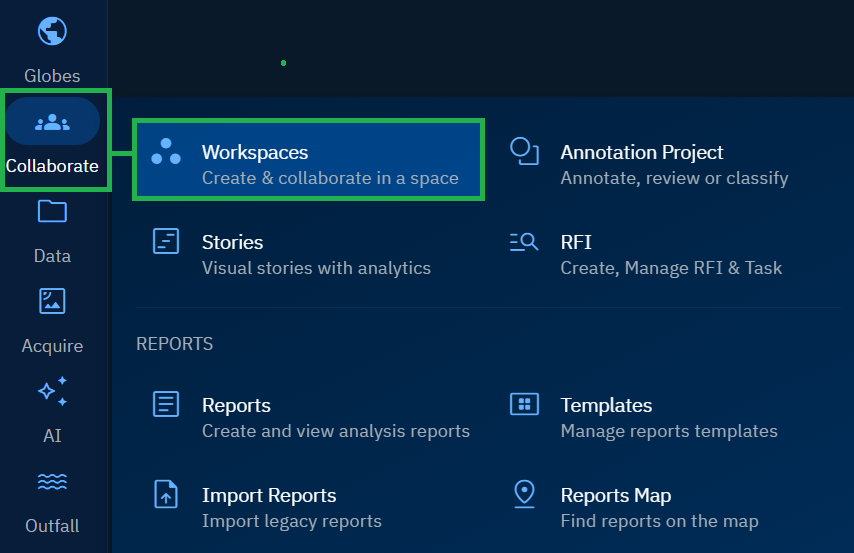
The Workspaces page is displayed.
-
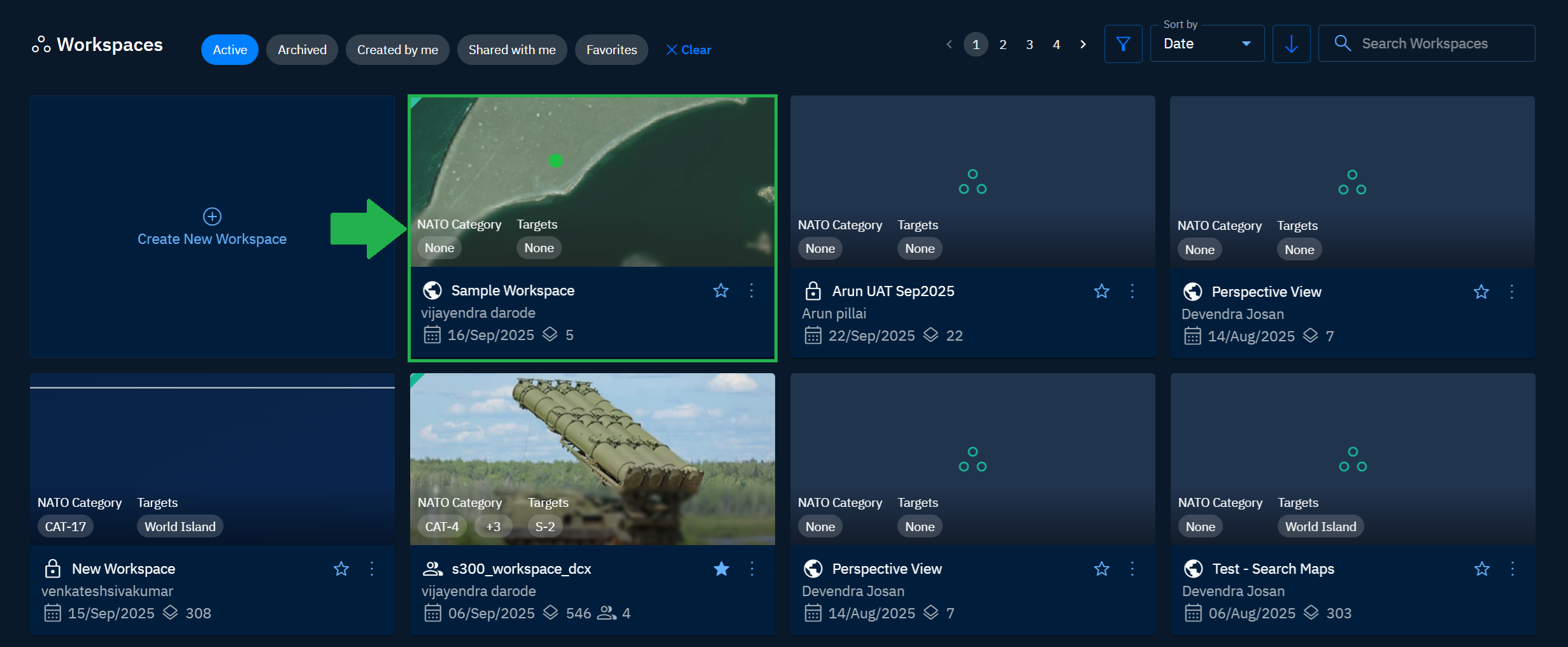
In the Workspaces page, open an existing workspace where you want to add the dataset.
-
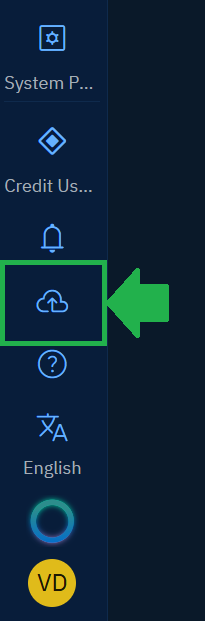
In the Main Menu Toolbar, click the Upload button
The File Upload dialog box is displayed.
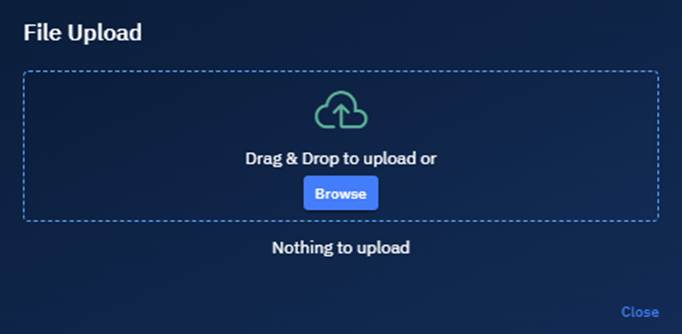
- In the File Upload dialog box, do one of the following:
-
Click the Browse button, select a file from your local computer, and then click the Open button
-
Drag-n-drop a file in the dotted area on the File Upload dialog.
-
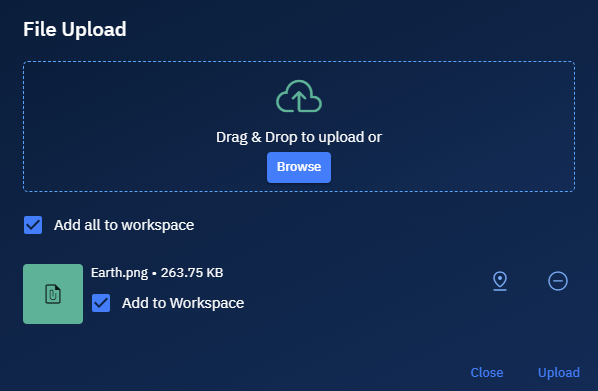
Click the Location icon to set a geolocation for the file.
-
Select the Add to Workspace checkbox to locally upload the dataset to the current workspace.
-
Click the Upload button.
The dataset is successfully uploaded to the workspace of your choice.
Viewing Datasets
Datasets uploaded to a specific workspace are referred to as local uploads.
Once the dataset is successfully ingested in the system, it can be viewed and is available at the following locations:
- The Workspace (where the dataset is uploaded)
- The Explore module
- The File Manager
Viewing in Workspace
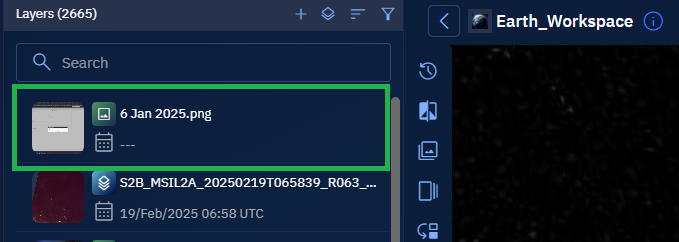
Once the dataset is successfully ingested in the system, it can be viewed in the workspace where it was uploaded.
To view dataset in a workspace, do the following:
- Click the Collaborate module, and then click the Workspace sub-module.
The Workspaces page is displayed.
-
In the Workspaces page, click the workspace where you uploaded the dataset.
-
View the dataset in the layers panel in the workspace.
Viewing in File Manager
Once the dataset is successfully ingested in the system, it can be viewed in the file manager.
To view data in file manager, do the following:
- Click the Data module, and then click the File Manager sub-module.
The File Manager page is displayed.
-
In the File Manager page, search and view the dataset.

Viewing in Explore Module
To view dataset in explore module, do the following:
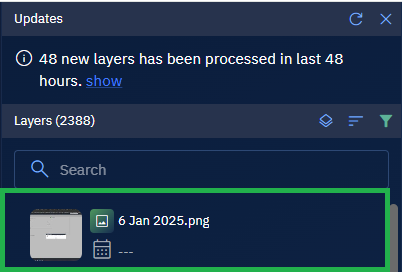
Once the dataset is successfully ingested in the system, it can be viewed in the file explore module.
-
Click the Explore module
-
Search and view the dataset in the Layers panel.
Monitoring Ingestion
You have the option of tracking the progress of datasets uploaded locally to a specific workspace through the following:
- File Manager
- Ingestion Jobs module
Viewing Progress in File_Manager
You can monitor datasets in the File Manager as soon as you upload them to the platform. Once the dataset is uploaded, you can view all the associated details and information of the datasets in the File Manager.
Prerequisites:
Ensure that you first upload the datasets for ingestion either through the File Manager module or the Upload feature. You can then proceed to monitor the progress in the Ingestion Jobs module with the following steps.
To monitor ingestion progress, do the following:
-
Login to platform.
-
Click the Data module, then click the File Manager sub-module.
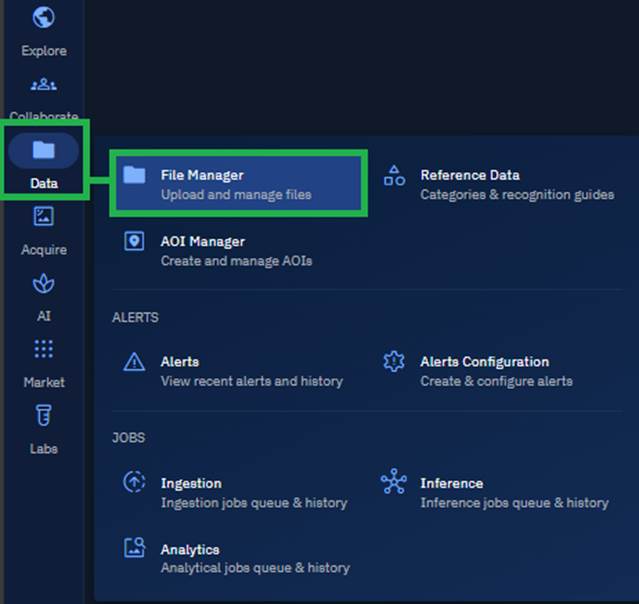
The File Manager page is displayed.
-
In the File Manager page, view the progress of the file.

Viewing Progress in Ingestion Jobs Module
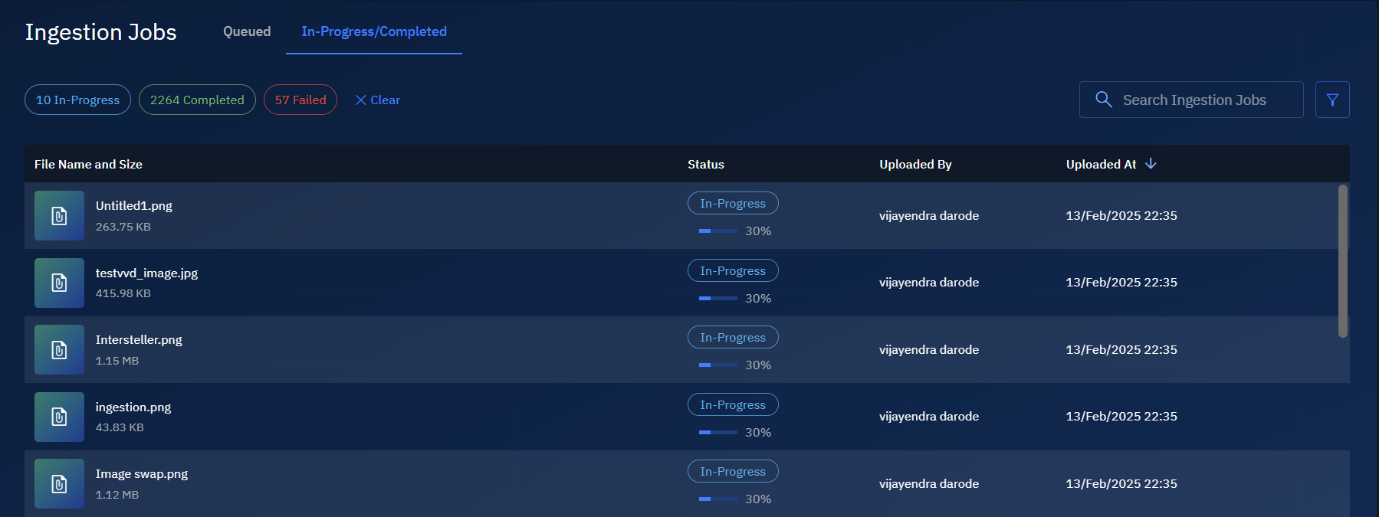
In the Ingestion Jobs module, you can monitor datasets that are queued for ingestion into the platform. Initially, these datasets appear in the Queued tab, each accompanied by a priority number indicating its order in the queue. As the ingestion process starts, the datasets are moved to the In-Progress/Completed tab, allowing you to track their progress until the process is fully completed.
Pre-requisites: Ensure that you first upload the datasets for ingestion either through the File Manager module or the Upload feature. You can then proceed to monitor the progress in the Ingestion Jobs module with the following steps.
To monitor progress, do the following:
- Click the Data module, and then click the Ingestion Jobs sub-module.
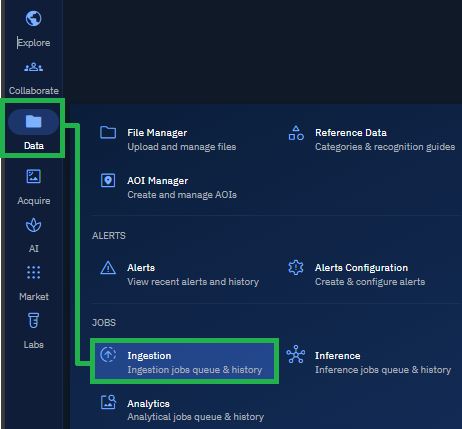
- In the Ingestion Jobs page, under the Queued tab view the datasets that are in line and ready to get ingested.

- Click the In-Progress/Completed tab to monitor the progress of ingestion of datasets into the system.